View/Edit Connection
Editing a Database Connection
- Port, Username, Password, Connection name can be changed after creation
- Leave the password field blank to keep the existing password.
- Re-upload a private key file only to replace it; leaving the upload empty keeps the existing key.
Deactivating a Database Connection
Database connections can be toggled between Active and Inactive:
- Active — available for use in Agents.
- Inactive — cannot be used during the Agent creation
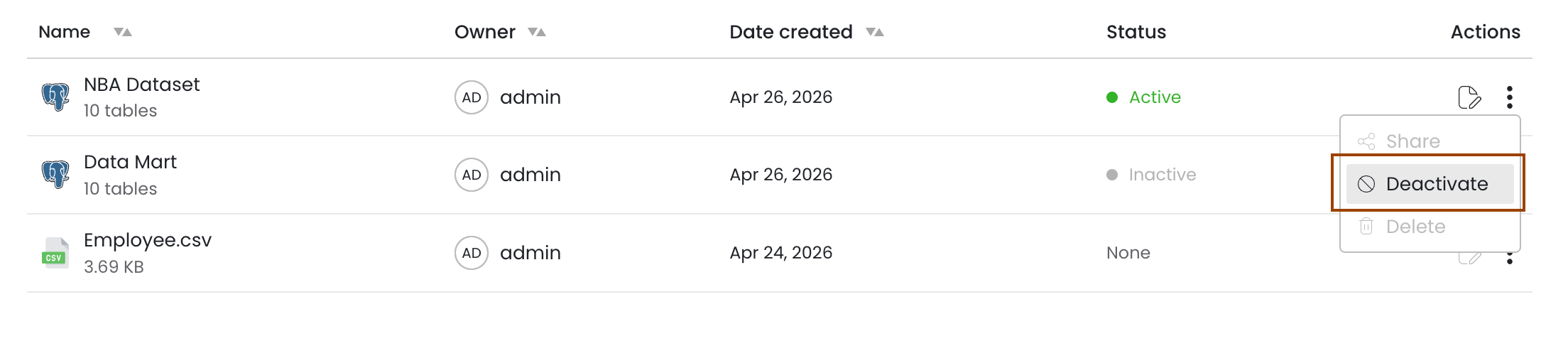
To deactivate, open the data source, click on three dots of a connection and a deactivate button. A confirmation dialog shows “ Are you sure you want to unpublish connection?“ along with “Cancel“ & “Continue” button
A data source cannot be deactivated while it is connected to an Agent. When tried to deactivate say “Resource bound to an Agent“.
Sample Data
When any data source is created or uploaded, Denzing automatically generates sample data:
| Source Type | Rows Stored | Where Shown |
|---|---|---|
| CSV file | Up to 10 rows (configurable) | Agent details panel |
| Database | Up to 10 rows per table (configurable) | Agent details panel |
Sample data lets you preview your data without running a query.
Using Data Sources with Agents
Data sources are surfaced to end users through Agents. When creating an Agent:
- Go to the Data Source tab in the Agent configuration.
- Select which data source to attach — either a database connection or a CSV file.
- For database connections, choose which tables the Agent should have access to (the Agent will only query the tables you select, not the entire database).
- For CSV files, the entire file is made available to the Agent.
An Agent can have either a database connection or a CSV file attached — not both at the same time. Once a data source is assigned to an Agent, it is fixed and cannot be changed. If you need a different data source, you must create a new Agent.
Security
| Feature | Detail |
|---|---|
| Encrypted at rest | All database credentials (username, password, schema, warehouse, role, private keys) are Fernet-encrypted before storage. |
| Connection details never exposed | Connection details (host, username, schema, warehouse, role, etc.) are not returned in any API response except the edit form, where they are needed to pre-populate the form. Secrets (passwords, private keys) are never returned under any circumstances, including on the edit form. |
| File checksums | Uploaded files are stored with a SHA-256 checksum for integrity verification. |
| Permission-gated | All create/edit/delete operations for database connections require the Datasource Connection permission. File uploads require the File Upload permission. |
| SQL sanitization | Queries run via the SQL Editor are sanitized before execution. |
| BigQuery key validation | Service account JSON files are validated for required fields and a correct token URI before acceptance. |
| S3 isolation | Files are stored in S3 with per-tenant path isolation and served via presigned URLs. |
Validation Reference
CSV Files
| Rule | Detail |
|---|---|
| Max file size | 50 MB (default, admin-configurable) |
| Accepted types | CSV only |
| File name length | Max 255 characters |
| Empty file check | CSV files must contain at least one row |
Database Connections
| Field | Rule |
|---|---|
| Connection Name | Required; max 255 characters |
| Port | Must be between 1024 and 49152 |
| Password | Required on create (except Snowflake/BigQuery key-based auth); optional on edit |
| Snowflake private key | File extension must be .key, .pem, or .p8 |
| BigQuery service account | File must be .json with all required fields; token URI must be https://oauth2.googleapis.com/token |
| BigQuery service account fields | Must include: type, project_id, private_key_id, private_key, client_email, client_id, auth_uri, token_uri |
| Database type | Cannot be changed after creation |
| Database name | Cannot be changed after creation |
Frequently Asked Questions
Can I connect to multiple databases at once?
Yes. You can create as many database connections as you need. Each Agent is bound to one data source, but you can have many Agents each pointing to a different connection.
Can I use the same data source in multiple Agents?
Yes. Multiple Agents can share the same database connection or CSV file. Each Agent independently controls which tables are included (for databases). However, once a data source is assigned to an Agent it cannot be changed — to switch data sources you must create a new Agent.
What happens if my database credentials change?
Edit the data source, enter the new credentials, and save. Denzing will test the connection with the new credentials before accepting the update.
Can I see what queries are being run against my data?
You can view chat history within each Agent session to see the SQL or query generated and the results returned.
Why can't I deactivate my database connection?
A database data source cannot be deactivated while it is assigned to one or more Agents. Remove it from all Agents first, then deactivate.
My database schema changed — how do I refresh it?
Schema refresh is not currently supported. If your database schema has changed, you will need to delete the existing data source and re-add it. Because the schema is tied to any Agents using it, those Agents will also need to be recreated with the new data source.
Can I share a CSV file with my team?
Yes. CSV files can be shared with individual users, roles, groups, or designations from the sharing panel on the file.
Is there a limit to how many CSV files I can upload?
There is no hard limit on the number of files, but each file must be under 50 MB (default). Administrators can adjust this limit.