Data Source Creation
CSV Data Sources
Uploading a CSV File
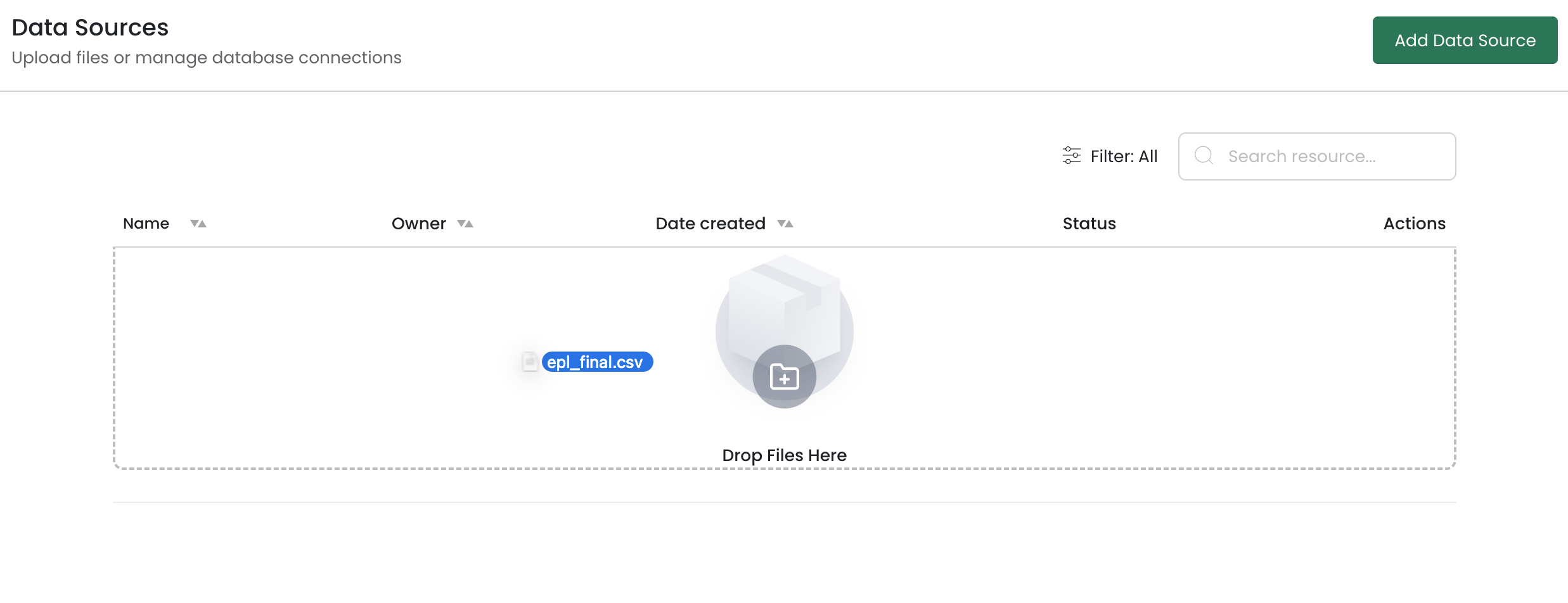
- Go to the Data Sources page.
- Click the Add Data Source button in the top-right corner, then select a CSV file or drag and drop it directly onto the page.
- Denzing validates the CSV file for the following:
- File must not be empty (CSV files are checked for content).
- File name must be 255 characters or fewer.
- File size must not exceed the configured limit (default: 50 MB).
- The file is uploaded and processed in the background. Denzing automatically reads and stores a preview of up to 10 rows as sample data.
Limits
| Limit | Default | Configurable by Admin |
|---|---|---|
| Max file size | 50 MB | Yes |
| Sample rows stored | 10 rows | Yes |
| Sample rows shown in preview | 20 rows | Yes |
Sharing a CSV File
CSV data sources can be shared with other users in your organization. Open the file's sharing panel to grant access by individual users
To revoke access, open the sharing panel and remove the user.
Deleting a CSV File
From the Data Sources list, select a file and choose Delete:
- Delete — permanently removes the file.

Database Data Sources
Supported Database Types
| Database | Notes |
|---|---|
| Snowflake | Supports key-pair authentication |
| PostgreSQL | Standard connection with schema support |
| MySQL | Standard connection |
| Oracle | Standard connection |
| Google BigQuery | Uses a service account JSON key file |
| Databricks | Uses HTTP path and client credentials |
| Microsoft Fabric | Uses SQL endpoint and tenant ID |
| Microsoft SQL Server (MSSQL) | Standard connection |
| ClickHouse | Standard connection |
Creating a Database Connection
1. Choose your database type

On the Data Sources page, click Add Data Source and select Connection.
2. Use the Connect by URL checkbox of Select Database Type

3. Fill in connection details
Enter your credentials field by field.
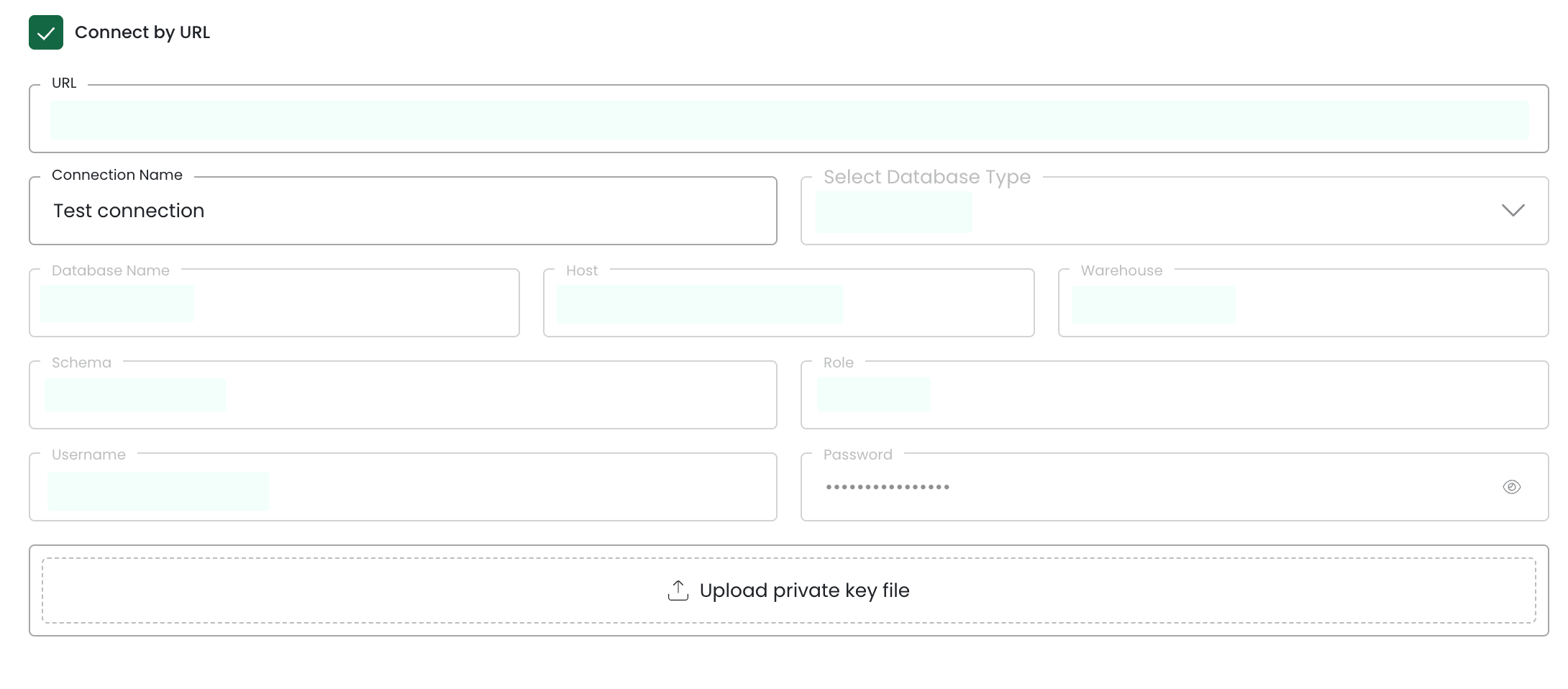
Fields common to most databases:
| Field | Description |
|---|---|
| Connection Name | A display name for this data source (max 255 characters) |
| Host | The hostname or IP address of your database server |
| Port | The port your database listens on (range: 1024–49152) |
| Database | The name of the database (or dataset/catalog) to connect to |
| Username | Your database user or service account name |
| Password | Your database password or secret |
| Schema | The schema or namespace to use (required for PostgreSQL, Snowflake, Databricks, Microsoft Fabric, MSSQL) |
Additional fields by database type:
| Database | Extra Fields |
|---|---|
| Snowflake | Warehouse (compute warehouse name), Role, Private Key File (.key / .pem / .p8) |
| BigQuery | Warehouse (GCP Project ID), Database (Dataset ID), Service Account Key (.json file) |
| Databricks | Warehouse (HTTP path), Username (client ID), Password (client secret) |
| Microsoft Fabric | Host (SQL endpoint), Role (Tenant ID), Username (client ID), Password (client secret) |
Passwords and keys are encrypted before storage. Passwords are never shown again after saving, even in the edit form.
4. Test the connection
Click Test Connection before saving. Denzing will attempt a live connection and report success or failure. Fix any errors before proceeding.
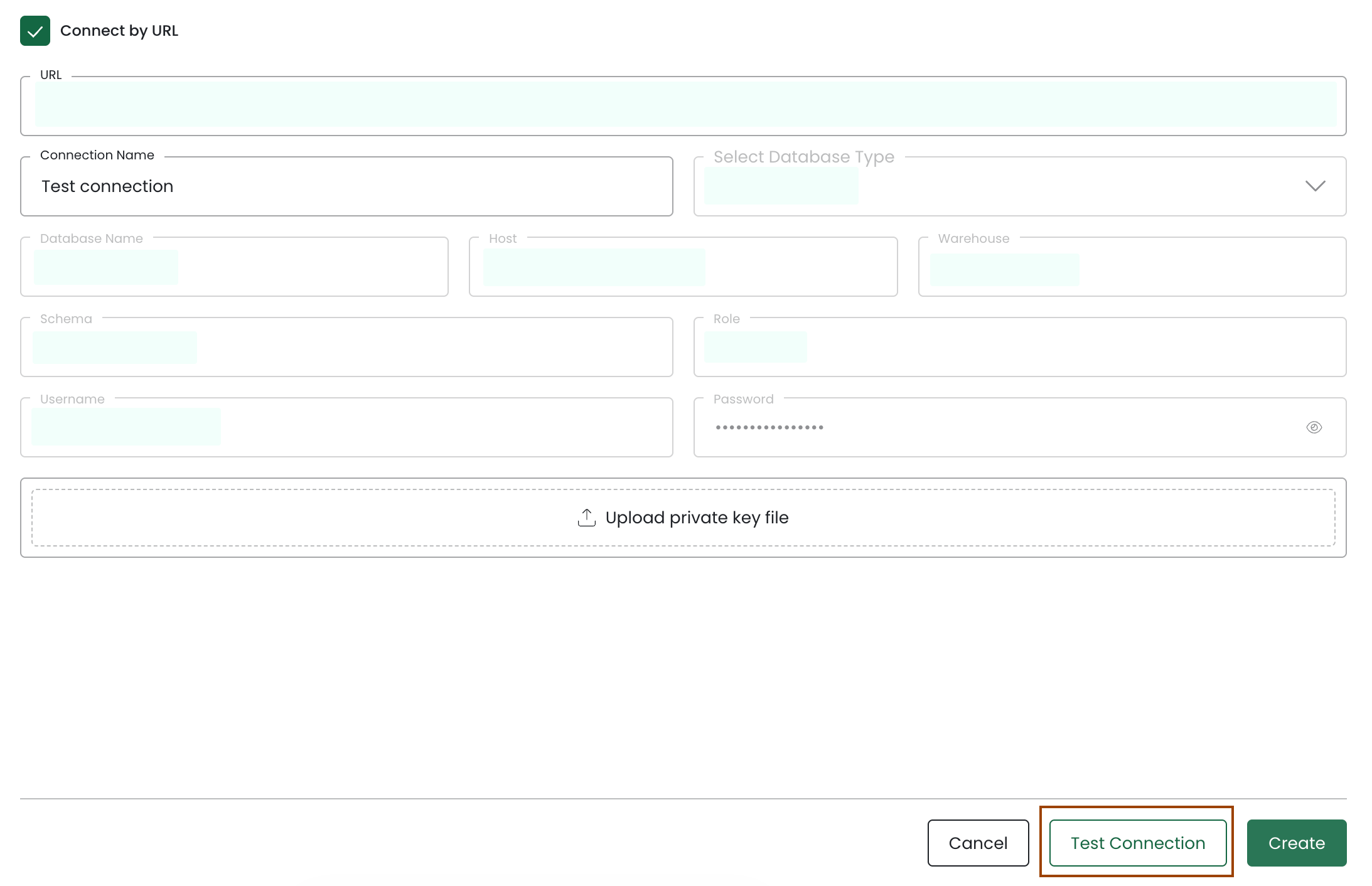
5. Save
Click Save. Denzing will:
- Verify the connection once more.
- Fetch and cache your full database schema (tables, columns, relationships).
- Run a background task to load sample data (up to 10 rows per table by default).